Authentication with Google
Hello Taernians!
Authentication with a Google account is a comfortable way to log in and another layer of security that protects you from unauthorised access and makes it possible to use our platform quickly and without issues. Google Authenticator is a very popular system that we decided to use to let you enable two-factor authentication. We strongly encourage you to do so.
Configuration
Start from the character selection screen. In the top right corner, you'll find a gear icon that will take you to the settings window.
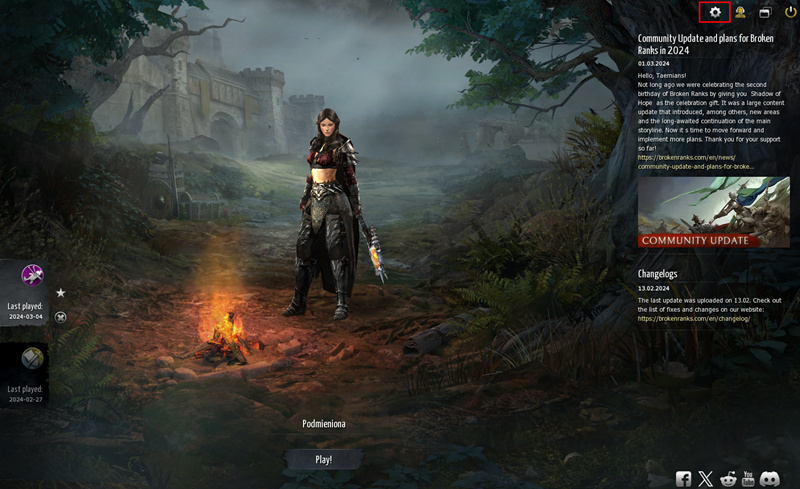
A window with various options will open, select the "Authentication" tab.
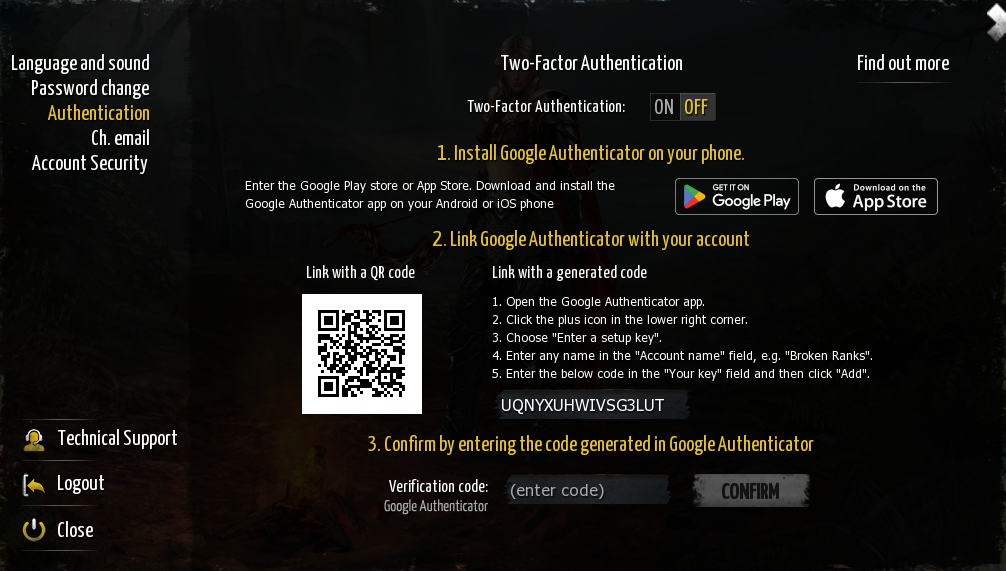
Enable authentication by clicking ON. A short instruction will appear, explaining how to install and link your account with the Google Authenticator app. You'll have two options: linking using the QR code visible on the screen or by entering the configuration key into the app. After completing one of these actions, in step three, confirm your intention to apply two-factor authentication by entering the code generated in the Google Authenticator app and clicking CONFIRM.
Backup Codes
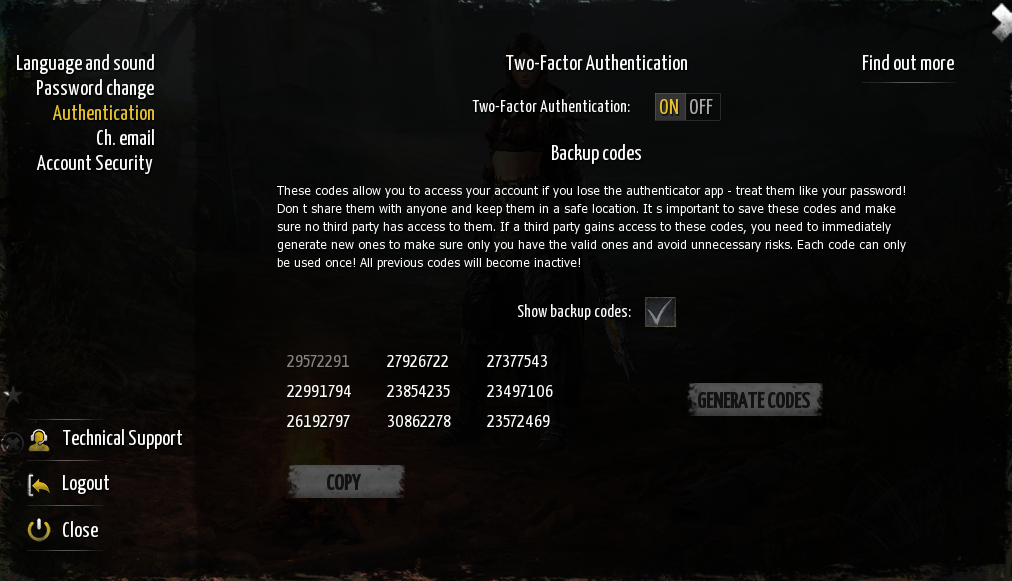
Backup codes are unique, random codes received after enabling two-factor authentication. Backup codes allow you to log in if you lose access to the authentication app. You can find them in the "Authentication" tab. To view them, check the "show backup codes" box and enter your password and code from the Google Authenticator app. Remember to save the codes in a secure place inaccessible to third parties. You can copy them with one click and save them in a text file.
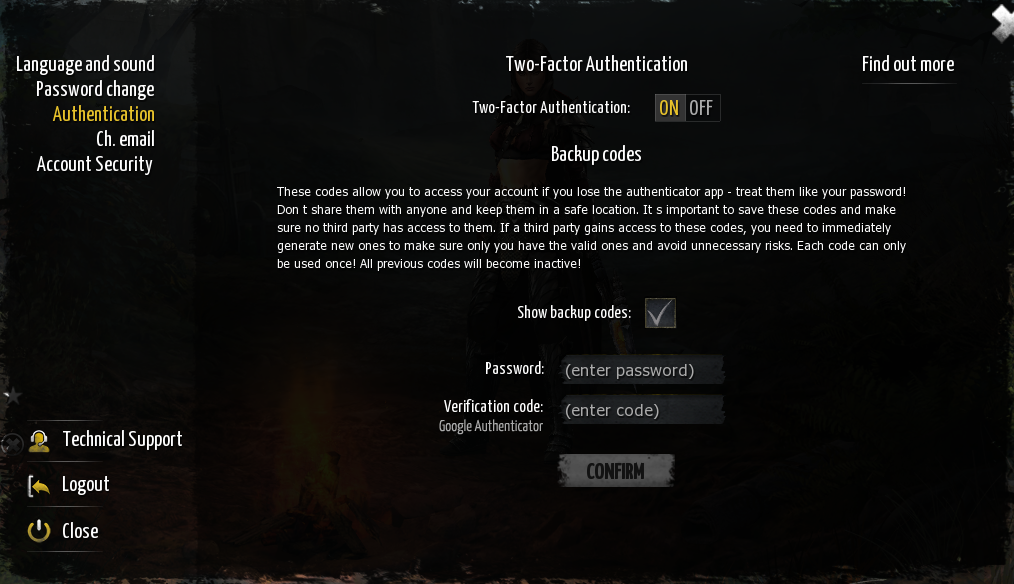
WARNING! The codes are single-use only, so it is recommended to generate new backup codes before using all of them. Used codes will be grayed out. It’s also important to note that generating new codes deactivates the remaining codes from the previous session. Never share your backup codes with anyone and save them in a secure place.
Account Security
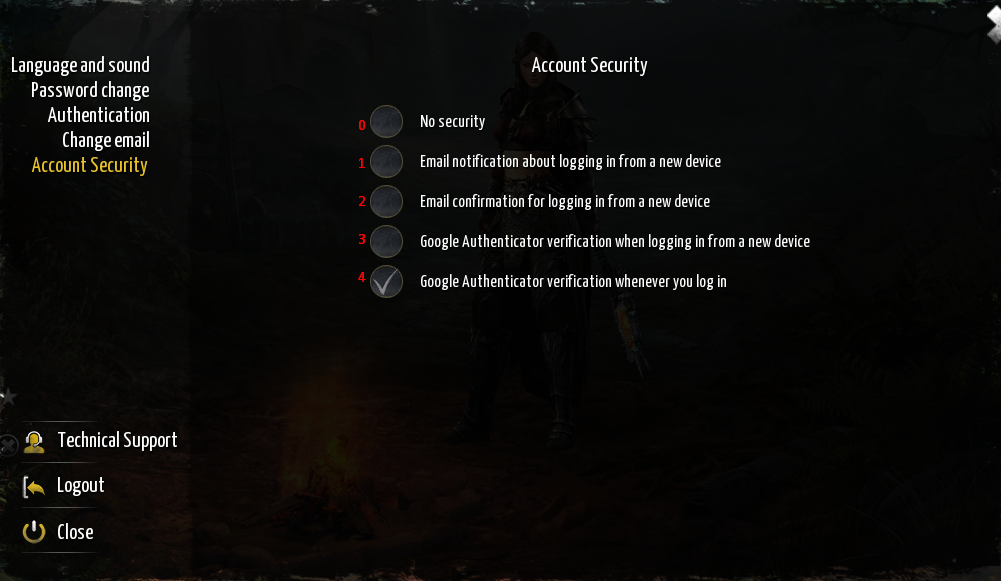
There are 5 levels of account security available. Levels 0-2 can be configured without using Google Authenticator (GA), but for maximum security, we recommend using GA (levels 3-4).
The main difference is the frequency with which you’ll have to enter the codes:
Level 3: You only enter the code when changing devices.
Level 4: You enter the code every time you log in.
WARNING!
Deactivating two-factor authentication (GA) at security levels 3 or 4 is not possible. To disable GA, you must lower the security level to 0, 1, or 2.
What if you lose access to the GA app?
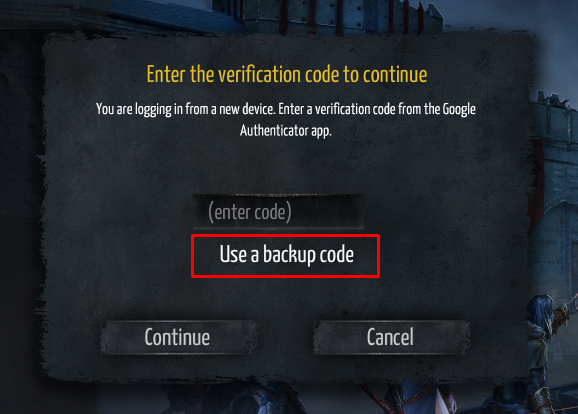
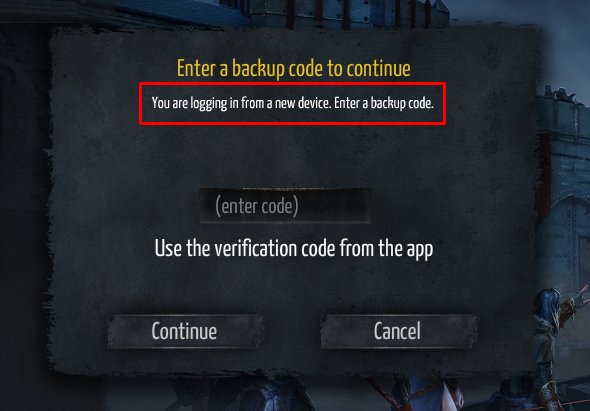
If your security level is 3 or 4, you can still log in to your account using backup codes. After attempting to log in to the game, a window will prompt you to enter the GA code or backup code. Choose the option to enter the backup code, enter the code into the field, and click "Continue."
If the loss of access to GA is permanent, you can disable two-factor authentication in the settings after logging in and then enable it again to link your account to the GA app on a new device.
Changing Email Address
Changing your email address requires connecting to Google Authenticator (GA). If you haven't activated this feature yet, go to the "Authentication" tab and enable two-factor authentication. The procedure starts with entering the current email address and confirming it with the GA code.
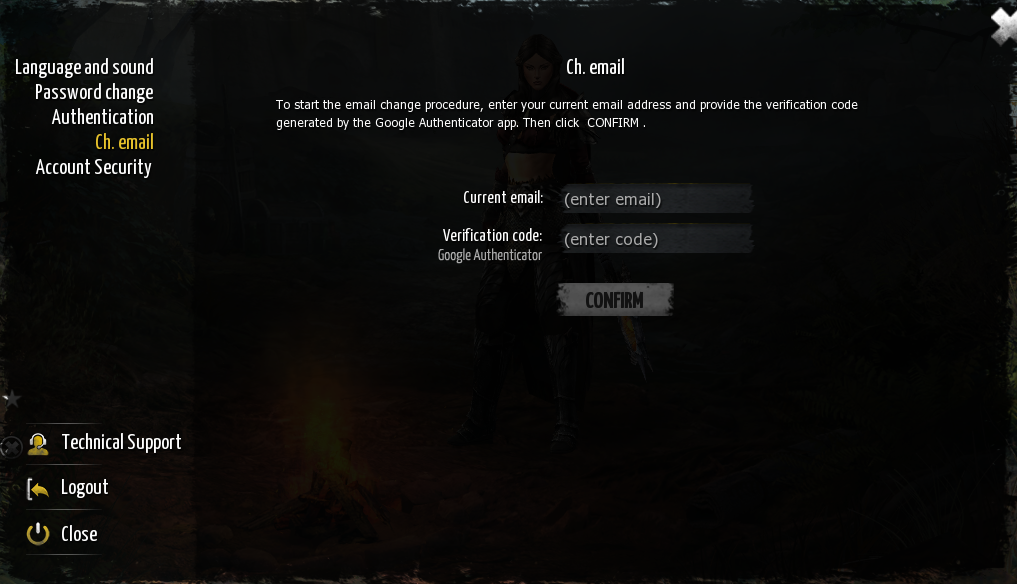
After approval, you must wait 14 days to proceed to the next stage. During this time, you can cancel the change at any time if you change your mind or if the email address change request for your account was not initiated by you.
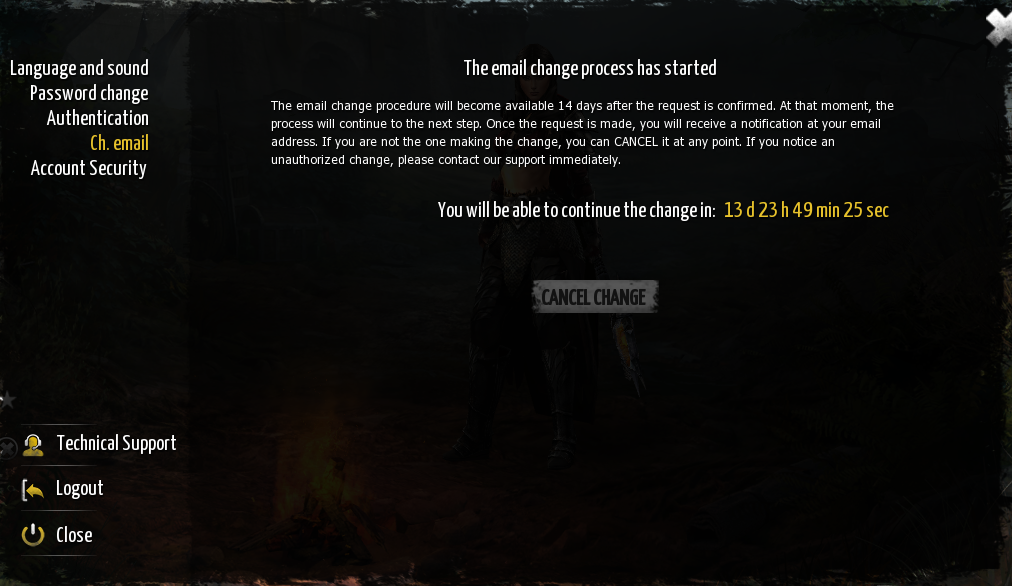
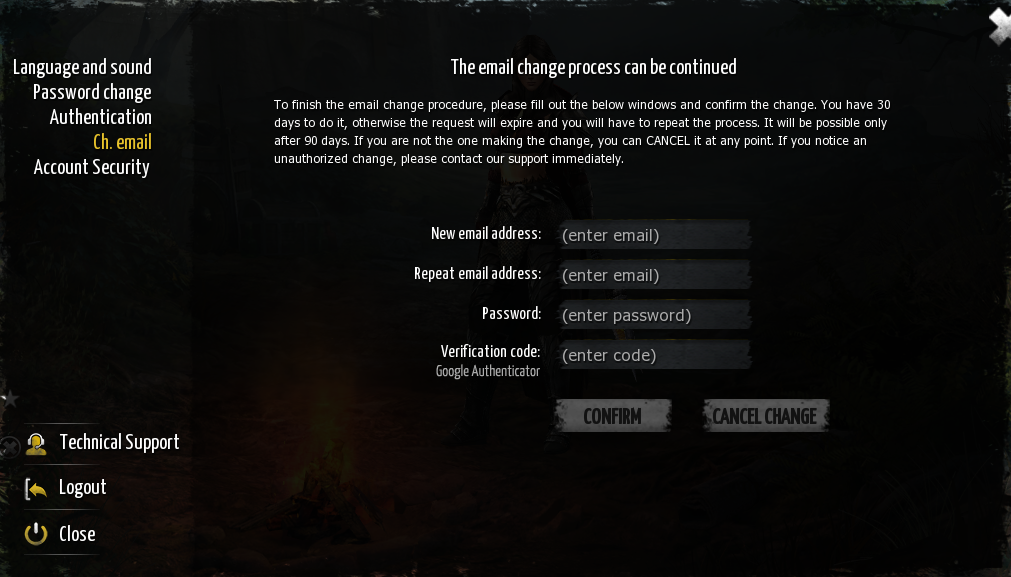
After 14 days, the window will update. To continue the procedure, you must enter the new email address and confirm it with your password and GA code.
WARNING!
Remember to enter the correct email address. Otherwise, you risk losing access to your account. After pressing CONFIRM, the email address will be changed.
Confirm the new email address by clicking the activation link sent to it.
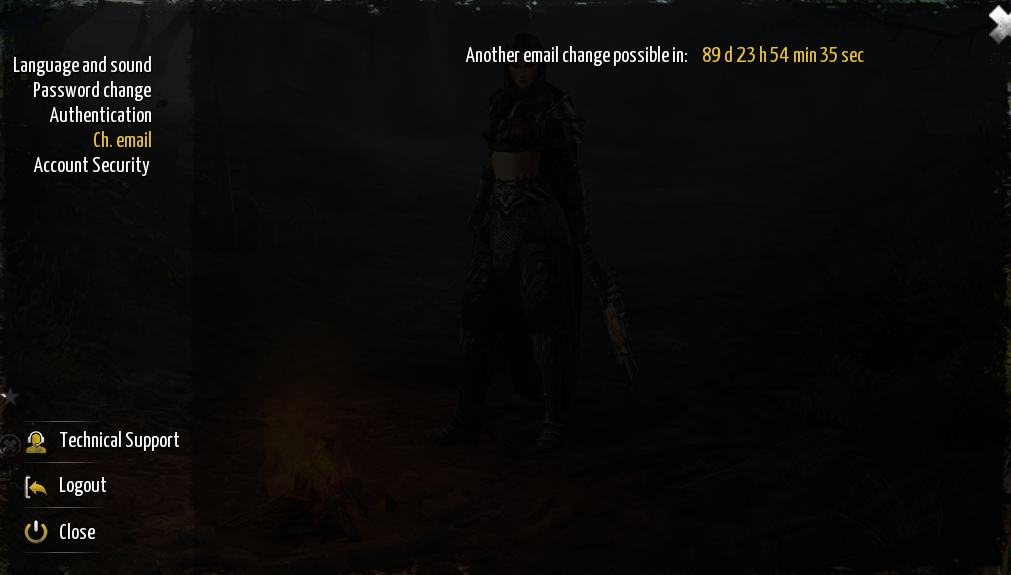
Another email change will be possible after 90 days.